Apple Watch Running Intervals: A Complete 2026 Guide
Your coach sends the session the night before. It says something simple on paper: 8x400m at 5k pace with 90s recovery jog. Then you look at your Apple Watch and remember the annoying part isn’t the run. It’s turning that note into something the watch can guide.
That friction is real. Apple Watch has become a capable tool for interval training, especially for runners who want structured prompts, clear splits, and fewer excuses to drift through hard sessions. But capability and convenience aren’t the same thing. The native builder works. It doesn’t always work fast.
If you want Apple Watch running intervals to feel smooth instead of fiddly, you need to know where the stock Workout app is strong, where it gets clumsy, and when another workflow makes more sense.
Table of Contents
- Why Use Structured Intervals on Your Apple Watch
- Creating Custom Intervals with the Native Workout App
- Advanced Interval Training Tips and Metrics
- The Friction of Translating Coach Notes to Your Watch
- Smarter Workflows with Third-Party Apps and Text-to-Workout Tools
- Your Apple Watch Running Intervals Questions Answered
Why Use Structured Intervals on Your Apple Watch
A lot of runners still do interval days as glorified open runs. They glance at a workout note, start an Outdoor Run, and try to remember where each rep starts and ends. That works if the session is short and simple. It falls apart when fatigue sets in.
Structured intervals fix that. Your watch becomes the session manager. It tells you when to press, when to back off, and when the next repeat begins. That matters because pacing errors usually show up early. Runners go too hard on the first rep, jog too easily on recovery, then wonder why the last third of the workout turns messy.
The value isn’t just convenience
A structured session helps in three ways:
- Better pacing discipline. You don’t have to memorize the sequence or stare at elapsed time.
- Cleaner recoveries. Recovery jogs stop being random.
- More useful post-run review. When work and recovery are clearly separated, the session makes more sense afterward.
For coached runners, this is even more important. A note like “4x800m, relaxed fast, equal recovery” sounds simple until you’re halfway through the second rep and trying to remember whether recovery started at the beep or the turn.
Practical rule: If the workout has repeats, changing targets, or a specific recovery instruction, put structure on the watch instead of relying on memory.
Apple Watch running intervals also make ordinary training more deliberate. A threshold set, a hill session, or even a progression run becomes easier to execute when the watch handles the timing. If you’re still deciding whether interval work belongs in your week, this breakdown of interval training advantages for runners is worth reading.
The main trade-off is setup. The native tools are far better than they used to be, but the time you spend building the session can still become a barrier on busy days. That’s where knowing the full workflow matters.
Creating Custom Intervals with the Native Workout App
Apple made native custom running intervals possible in watchOS 9, released in September 2022, including repeating work and recovery intervals built directly on the watch, plus 9 new running metrics such as Heart Rate Zones, Stride Length, Ground Contact Time, and Average Power for interval analysis, as detailed in 9to5Mac’s watchOS 9 running metrics coverage.
What the native builder can do well
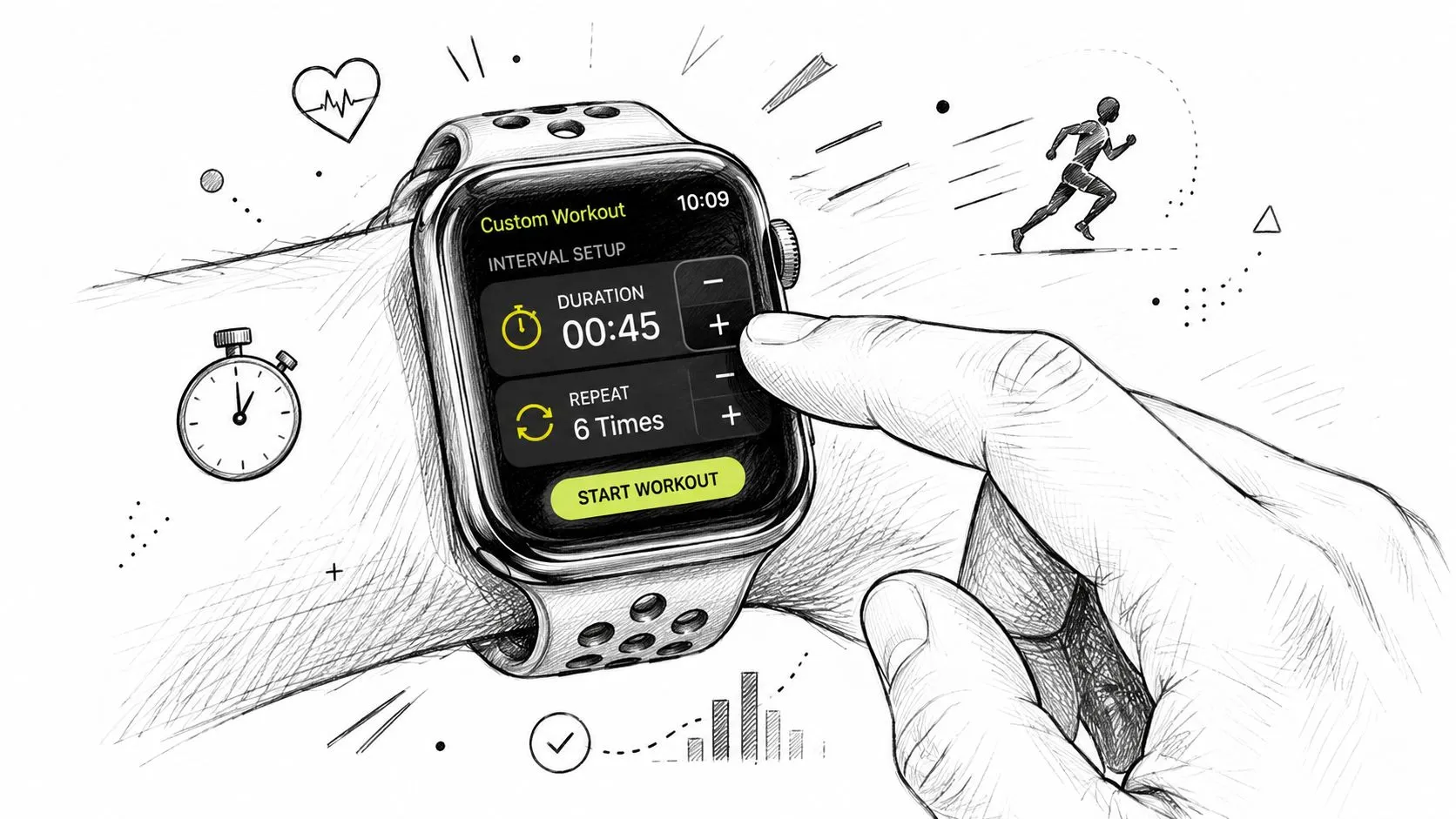
For standard running sessions, the built-in Workout app is good enough for a lot of people. You can create a warmup, define work and recovery blocks by time, distance, or open duration, then add a cooldown. You can also repeat work and recovery segments, which covers the classic sessions most runners use.
That means a workout like 4x800m with jog recoveries is completely realistic in the stock app. You don’t need a separate running app to get a basic interval day onto your wrist.
A sensible use case for the native builder includes:
- Track-style sessions like 200s, 400s, 800s, or 1k reps
- Time-based efforts such as 6x3 minutes hard with 2 minutes easy
- Open warmups and cooldowns when you don’t want a strict duration
- Simple race prep workouts where prompts matter more than deep programming logic
How to build a workout step by step
On the watch, open Workout, choose Outdoor Run, tap the three-dot menu, choose Create Workout, then select Custom. From there, add the building blocks in order: warmup, work, recovery, repeats, and cooldown.
A practical example is 4x800m with 2-minute recovery jogs:
- Warmup first. Choose an open warmup if you want to start the reps when you feel ready.
- Add the work block. Set Work to distance and choose 800m.
- Add the recovery block. Set Recovery to time and choose 2 minutes, or use open if you want to recover by feel.
- Set repeats. Tell the watch to repeat that work and recovery pairing four times.
- Add cooldown. Open cooldown works well for most sessions.
One small but important quirk catches people: the Create Workout button stays inactive until you add at least one work or recovery interval. The watch won’t save a shell workout with no interval structure.
If you want a visual walkthrough of the builder in action, this short demo helps:
If you regularly train from a weekly plan instead of making single sessions on the fly, a more systematic structured workout plan for runners makes the native builder less frustrating because you can standardize the session types you repeat most often.
Settings that make intervals usable
The builder is only half the job. Execution depends on cues you can notice while breathing hard.
The most useful adjustments are these:
- Turn on stronger haptics. Prominent haptic alerts are easier to feel when you’re deep into a rep.
- Choose metrics you’ll act on. Don’t clutter the screen with data you won’t use mid-workout.
- Use open segments selectively. They’re flexible, but too many open steps make the workout less structured than it looks.
- Match interval type to the environment. Time-based reps are often easier on roads. Distance reps are cleaner on tracks and flat paths.
Missed cues ruin good interval sessions more often than bad fitness does.
One more practical limitation matters if you mix sports. Distance-based intervals aren’t universally available across stationary workout modes. If you build something for a non-running activity and assume distance targets will behave the same way, the workout may not work the way you expect. For runners, that mostly becomes relevant when you try to repurpose a workflow across treadmill, elliptical, or mixed conditioning days.
Advanced Interval Training Tips and Metrics
Once the workout is built, the next leap is making the watch show the right information at the right moment. Most runners sabotage this by stuffing every metric onto the screen, then using none of it when the rep starts to bite.
Choose the right metrics on screen
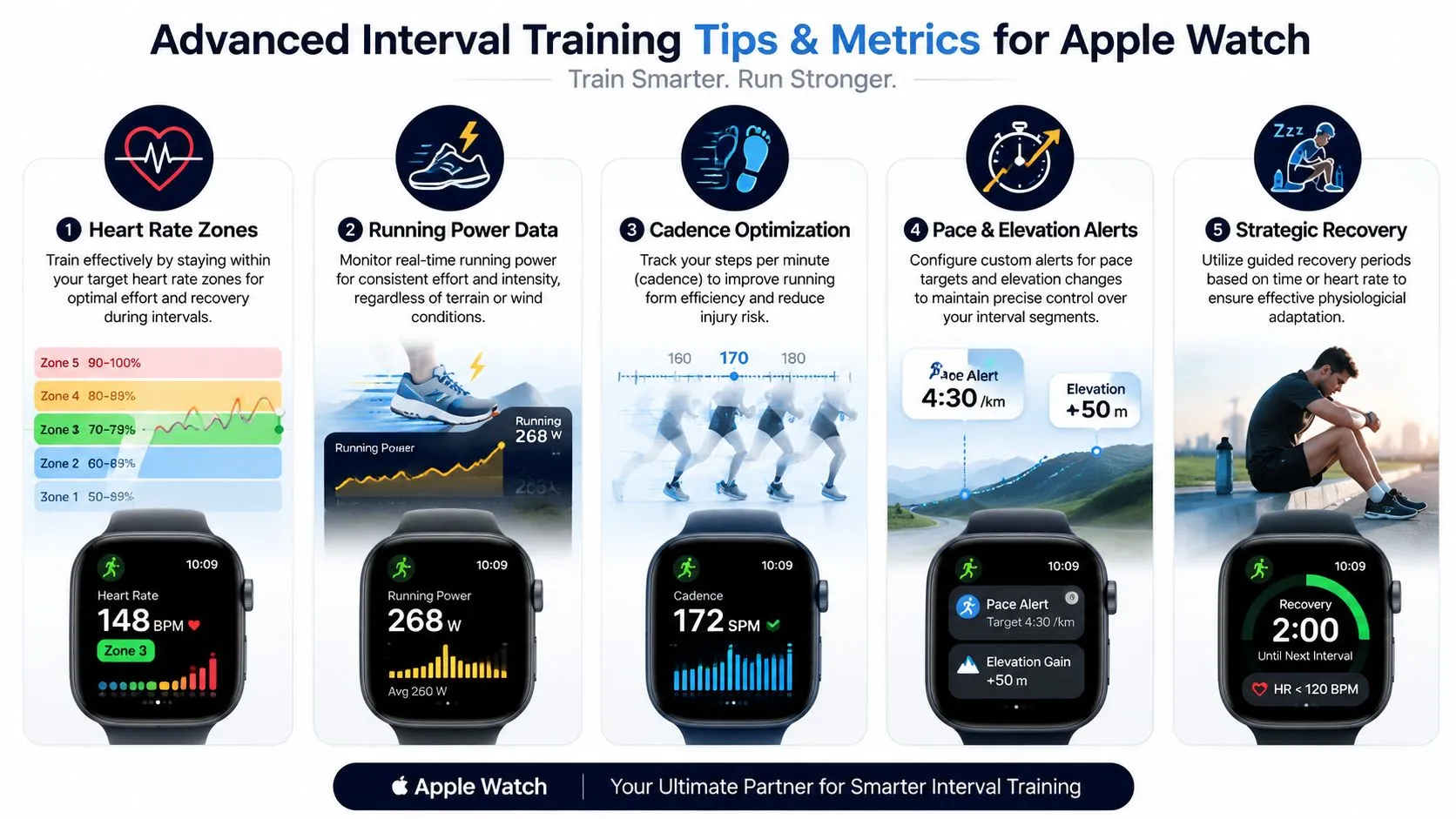
The Workout Views editor lets you customize what appears during outdoor runs. For interval work, the best setup depends on the purpose of the day.
If the session is speed-focused, keep the display simple. Pace, elapsed interval time, and heart rate are usually enough. If the session is more about efficiency or threshold control, then adding power or form metrics becomes useful.
A practical hierarchy looks like this:
- Primary control metric. Pace for track reps, power for variable terrain, heart rate for controlled aerobic work.
- Secondary check. Heart rate or cadence, depending on the session.
- One form metric. Stride Length, Ground Contact Time, or Vertical Oscillation, but only if you already know how to interpret it.
Coach’s note: Metrics help when they confirm a decision. They hurt when they compete for attention.
Apple Watch also supports real-time monitoring choices that matter during intervals, including Stride Length, Ground Contact Time, Vertical Oscillation, and Power in customizable workout views on current software. That makes the watch more useful once you stop treating it like a generic run recorder.
Use segment marking and training load wisely
Manual segment marking is underused. During any workout, you can double-tap the display to mark a segment. That’s handy when the session changes on the fly, when a rep gets interrupted by traffic, or when you want to flag a specific effort for later review.
For Apple Watch Ultra users, the Action button adds another layer of practicality. As covered in Apple’s watchOS 11 feature demo on Training Load and Ultra workout controls, Training Load tracks trends by multiplying your rated effort by workout duration, and on Apple Watch Ultra the Action button can be configured to start workouts and mark interval segments without a countdown.
That matters in real training. If you’re doing hard reps, a countdown or fiddly screen tap is noise. Starting cleanly and marking key moments quickly makes the session feel more like a training tool and less like a smartwatch feature demo.
Training Load is also more useful than it first appears, provided you rate your effort accurately after the workout. It won’t coach you by itself, but it can show whether your recent interval block is ramping too fast compared with your longer baseline.
A few advanced habits make the data cleaner:
- Rate effort immediately after finishing. Waiting until later makes the score less reliable.
- Use the same effort scale consistently. Don’t rate by mood.
- Review trends, not single workouts. One hard session doesn’t say much on its own.
- Mark unusual reps manually. That gives context when you look back later.
The Friction of Translating Coach Notes to Your Watch
The native Apple Watch builder is capable. It’s also slow when the session gets layered.
A straightforward workout like 6x2 minutes hard with 1 minute easy is manageable. A workout with nested structure is where things get ugly. Something like three sets of short reps with set recoveries turns into a lot of tapping, scrolling, and checking that you didn’t misplace a recovery block on a tiny screen.
Why the native flow breaks down
This is the part many runners think is their own impatience. It isn’t. In Apple user discussions, runners describe building multi-repetition sessions through the watch’s graphical interface as slow and error-prone compared to typing a natural sentence, and those same discussions point to the setup overhead as a reason people default to open runs, as shown in this Apple Support Community thread on custom workout friction.
That matches what happens in practice. The harder the workout is to describe briefly, the worse the watch-first editing experience gets. It’s not a problem of understanding intervals. It’s a problem of assembly.
The stock app asks you to think like a block editor:
- Add step
- Choose type
- Set target
- Confirm
- Repeat
- Check the order
- Fix the mistake you just noticed
That’s manageable once. It’s annoying every week.
What that friction does to consistency
The damage shows up before training starts. Runners stop programming the workout because they’re short on time, standing at the door, or mentally tired from work. Then they tell themselves they’ll remember the structure. Usually they remember the first half and freestyle the rest.
A training plan only helps if the workout gets onto the device before you leave the house.
This is why some athletes end up underusing a perfectly good Apple Watch. The watch can execute the session. The bottleneck is getting the session into the watch without wasting energy on admin.
For a casual runner, that may not matter much. For anyone following coaching notes, race prep blocks, or recurring quality sessions, it matters a lot. Consistency often comes down to reducing the small bits of friction that make you postpone the hard work.
Smarter Workflows with Third-Party Apps and Text-to-Workout Tools
If the native flow feels too cramped, you’ve got several ways to improve it. They don’t all solve the same problem, so it helps to think in layers rather than looking for a single magic app.
Where third-party apps help
Traditional third-party apps usually improve one of two things: workout creation on a larger screen, or richer execution and analysis once the session is on the watch.
Apps such as WorkoutDoors and iSmoothRun are worth considering if you want more control than Apple’s stock interface gives you. They’re especially useful for runners who care about customizable data fields, deeper run displays, or ecosystems built around more serious training use.
Their trade-off is familiar. Even when they’re better than the native builder, they still tend to rely on a companion phone workflow or another graphical editor. That means they reduce friction, but they don’t remove the underlying translation step.
Here’s the practical comparison.
| Method | Setup Speed | Complexity Support | How it Works |
|---|---|---|---|
| Native Workout app | Moderate for simple sessions | Good for standard intervals | Build blocks directly on the watch inside Workout |
| Third-party running apps | Better when paired with phone setup | Better for advanced training logic | Create and sync through the app’s own workflow |
| Text-based workout tools | Fastest when coach notes are already written | Strong for repeat-heavy structured sessions | Convert plain-language instructions into a structured workout |
Why text-first creation changes the workflow
The most efficient approach is often the one that mirrors how runners already receive training. Coaches don’t send block diagrams. They send plain language. “8x400m at 5k pace with 90s rest” is already the workout. The annoying part is re-entering it.
That’s where text-to-workout tools make sense. Instead of rebuilding the session step by step, you paste the description and review the parsed result. The value isn’t novelty. It’s avoiding manual reconstruction.
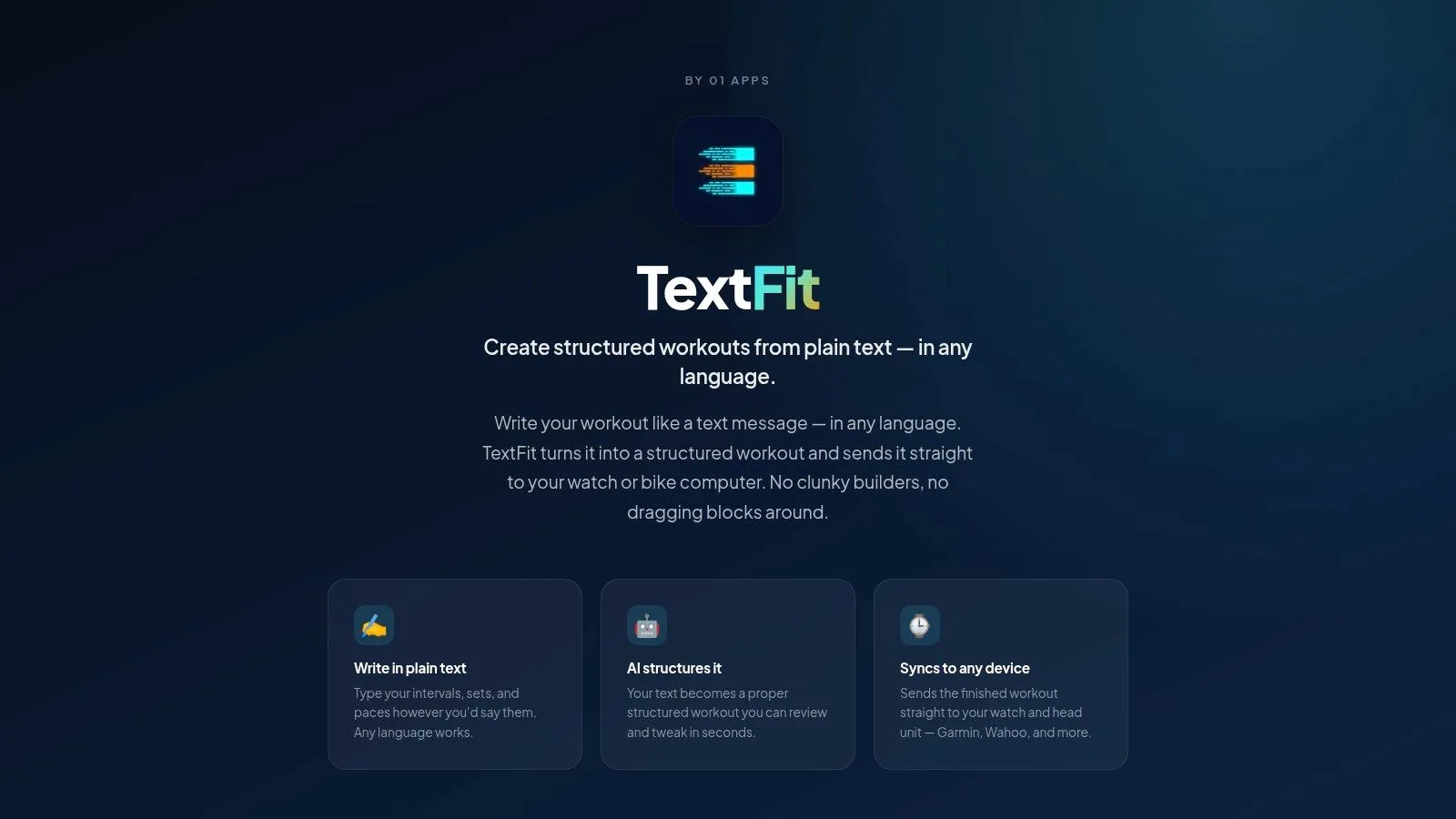
One example is TextFit’s workout plan builder, which turns a plain-language workout description, in any language, into a structured interval session you review and tweak before it goes to your watch. That kind of workflow is useful when your training starts as a message, a coach note, or a line in a calendar rather than as something you want to hand-build on a watch.
A good text-first workflow is especially helpful when the session includes:
- Nested repeats. Set structures are awkward to recreate on a watch.
- Mixed targets. Pace, power, and recovery instructions are easier to verify in text.
- Late changes. If your coach tweaks the session, you don’t want to rebuild everything from scratch.
- Multilingual notes. Many runners don’t naturally write workouts in English, and forcing translation adds another failure point.
No workflow is perfect. Native creation is fine for simple sessions. Third-party apps are useful when you want richer watch screens and more control. Text-first tools are strongest when the problem is speed from coach note to executable workout.
That’s the full spectrum. The right answer depends less on what your watch can do and more on how much time you’re willing to spend building the run before you run it.
Your Apple Watch Running Intervals Questions Answered
Can you do intervals indoors
Yes, but indoor intervals require a little more caution. Time-based workouts are usually the safest choice when you’re on a treadmill or doing controlled indoor work. They’re easier to execute consistently, and they avoid some of the mess that comes from depending too heavily on distance estimates indoors.
If you’re trying to adapt a workout concept from another activity mode, remember that some stationary modes don’t support distance-based interval targets the same way running does. When in doubt, use time.
Where do you see interval splits after the run
After the session, open the Fitness app on your iPhone and look at the workout details. That’s where your interval structure, laps, and segment information become easier to review than on the watch itself.
For coached runners, the key question isn’t only “What was my average pace?” It’s “Did the reps stay controlled, and did recovery drift?” Reviewing the splits soon after the run makes those answers clearer while the session is still fresh.
Why does the watch sometimes seem to miss a cue
In many cases, it didn’t miss the cue. You missed the haptic.
Many experienced users recommend switching the watch from soft vibration to Prominent Haptic Alerts in Sounds & Haptics, because the default Soft setting can be too easy to miss during hard running, as noted in this video walkthrough on Apple Watch custom intervals and haptic setup.
If your transitions feel late or messy, check these first:
- Haptics strength. Prominent is easier to notice during hard reps.
- Audio dependence. Don’t rely only on sound if you run in traffic or with headphones.
- Glove or sleeve interference. In cold weather, tactile cues can feel muted.
- Mental overload. If you’re staring at too many metrics, you’ll react later.
Can you share native custom workouts easily
Not in the way most runners expect. Native custom workouts live inside Apple’s own workflow, which is fine for personal use but less convenient when a coach wants to send sessions repeatedly or when a group wants a standard library of workouts.
That limitation is one reason many serious runners eventually move toward a platform or app-based system for structured sessions.
If you’re tired of rebuilding workout notes by hand, paste the coach’s message into TextFit: “8 x 400m at 5k pace with 90s jog”, in any language. You get a structured session to review and tweak, and it schedules directly on your Apple Watch. It’s free to start, and there’s no sign-up.