Zwift Workout Builder: Your Complete Guide for 2026
You’ve probably got a workout sitting in a note app right now.
Riding without Zwift? The same typed workouts can reach a Garmin Edge, Wahoo ELEMNT or Garmin watch in ERG mode via intervals.icu. See how to use a smart trainer without Zwift.
Something like “5 x 3 minutes at VO2max with equal recovery,” or “sweet spot pyramid, no rest between over-under changes.” The training itself is clear. The friction starts when you try to turn that plain-language session into something Zwift will run.
That’s where most riders lose time. Not on the bike, but before the ride. They open Zwift, hunt for the builder, click through blocks, drag intervals around, type in power targets, then wonder why the workout doesn’t show up where it should. The Zwift Workout Builder can do the job. It’s capable, detailed, and flexible. But it asks you to think like an editor when you want to think like an athlete.
A good structured workout is worth that effort when the session matters. It gives you a clear target, keeps intensity honest, and removes the usual indoor drift toward “sort of hard all the time.” The problem isn’t the idea of structured training. The problem is the workflow.
Table of Contents
- From Coach’s Notes to Custom Zwift Session
- Navigating the Native Zwift Workout Builder
- Crafting a Complex Interval Session From Scratch
- Managing Your Workouts: Files and Syncing
- A Faster Way to Create Workouts From Plain Text
- Common Builder Pitfalls and How to Avoid Them
From Coach’s Notes to Custom Zwift Session
A rider gets a message from a coach. “Warm up, then alternate over and under sweet spot. Finish with short high-cadence sprints.” That’s enough for a trained eye to understand the session immediately. It isn’t enough for Zwift. Zwift needs durations, targets, recoveries, order, and structure.
That translation step is where the native builder becomes both useful and annoying. It’s useful because it gives you precise control. You can map warmup, main set, recoveries, and cooldown exactly how you want. It’s annoying because every idea has to become a series of manual decisions on a visual timeline.
I’ve found that riders usually fall into two camps. The first wants to learn the native builder properly, save workouts, and reuse them. The second wants tonight’s session loaded fast with as little admin as possible. Both are reasonable. The mistake is assuming there’s only one workflow.
The best workout builder is the one that gets you riding before motivation fades.
If you coach athletes, the friction shows up even more clearly. One athlete sends a screenshot of handwritten notes. Another pastes a workout from TrainingPeaks-style shorthand. Another wants the same session with slightly different power targets. None of that is hard from a coaching standpoint. It becomes slow when you have to reconstruct each one block by block.
The practical answer is to master Zwift’s native editor first. It helps to understand what Zwift expects, how FTP scaling works, how interval blocks behave, and what can go wrong when a workout is saved or synced. Once you understand that foundation, it becomes obvious why many experienced users move toward text-first creation for day-to-day work.
Navigating the Native Zwift Workout Builder
The first hurdle with the Zwift Workout Builder is finding it. A lot of riders expect a normal web-based editor or an obvious menu on the home screen. That isn’t how this one works.
How to get into the builder
Users repeatedly ask whether they can build workouts outside the game, and a common workaround is launching Zwift, entering “Just Watch” mode, and following a less-than-obvious path to the builder, as discussed in the Zwift forum thread on creating custom workouts while not in game.
Once you’re in, the interface makes more sense than the entry point does. You’re looking at a visual timeline. You add blocks, place them in order, and adjust each one manually.

The core setup matters before you place a single interval. The builder requires your current FTP for accurate power targeting, and after you build the session it calculates Total Stress Score (TSS) and Intensity Factor (IF) before export to a .zwo file, as described by the Sport Calculator guide to the Zwift Workout Builder. If your FTP is stale, every percentage-based target is off from the start.
What the blocks actually do
Most sessions can be built from a handful of block types:
- Warmup: Best for progressive ramps. You can ease a rider into the session instead of starting abruptly at working power.
- Steady effort blocks: These are the bread and butter for tempo, threshold, sweet spot, and endurance work.
- Interval blocks: Use these when the session repeats a work and recovery pattern.
- Free Ride: Useful when you want the athlete to ride by feel rather than sit on one locked target.
- Cooldown: Tapers effort down instead of stopping dead at the end of the final interval.
A few practical rules make the builder easier to manage:
| Element | What to decide first | Why it matters |
|---|---|---|
| FTP setting | Current value | All power targets scale from it |
| Main set | Duration and intent | This defines the session |
| Recovery blocks | Length and target | Bad recovery setup ruins execution |
| Text cues | What the rider should remember | Reduces mid-session confusion |
Practical rule: Build the workout in coaching order, not in software order. Warmup first, then the main set, then the cooldown. Don’t start by fiddling with cosmetics.
When riders struggle with the native builder, it usually isn’t because the editor is impossible. It’s because the editor asks for precision at the exact moment they’re trying to preserve the feel of a workout. That’s manageable once you know where everything lives and what each block controls.
Crafting a Complex Interval Session From Scratch
The easiest way to get comfortable with the builder is to create a session you’d use. A sweet spot pyramid works well because it includes progression, repeat structure, and pacing discipline without becoming a giant mess of tiny blocks.
Before building from nothing, it’s worth checking Zwift’s existing library. Zwift offers hundreds of pre-built structured workouts, including examples like 20-minute intervals at 100% FTP and Tempo intervals at 88% FTP with VO2max bursts, available in the Training section under World Choice, according to BikeRadar’s guide to Zwift workouts and plans. Sometimes the fastest custom build starts from borrowed structure.
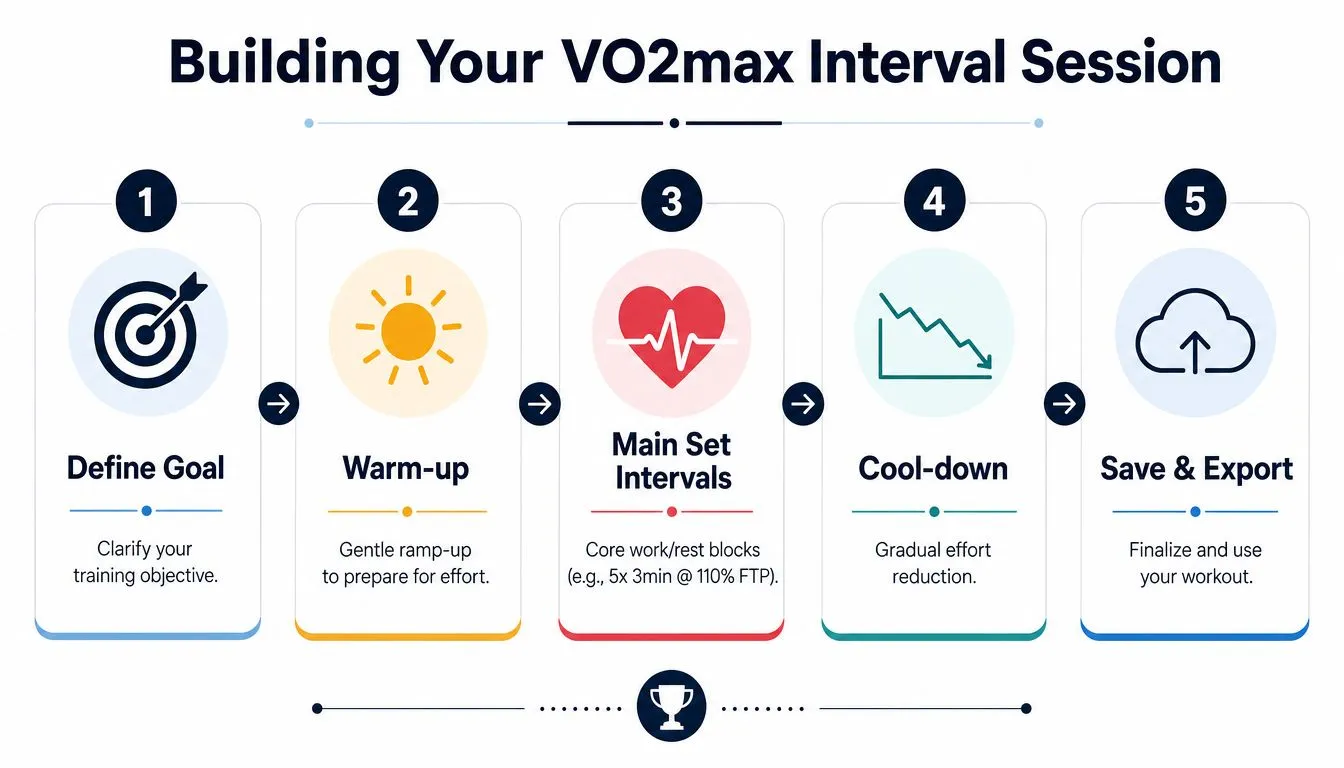
Start with the training objective
Let’s say the goal is sustained aerobic pressure with changes in torque and focus. A clean option is a pyramid main set using longer sweet spot efforts and subtle changes inside the block. The Sport Calculator reference notes that the builder supports structures such as 8/10/12/10/8-minute pyramids, alternating Over and Under sweet spot efforts at 96% and 88% FTP with no rest, and high sprint targets in more advanced workouts.
That tells you something important about the builder. It’s not limited by workout complexity. It’s limited by how much manual setup you’re willing to do accurately.
If you’re still deciding what kind of interval session to create, a plain-language planning tool can help before you touch Zwift at all. This guide to a free AI workout generator for structured sessions is useful for turning rough workout ideas into something more concrete.
Build the session in the order you’d coach it
Start with the warmup. Don’t overcomplicate it. A simple ramp that gradually builds to endurance or upper endurance usually does the job better than a warmup full of mini-surges unless the session specifically demands priming efforts.
Then place the main work. If the pyramid is 8, 10, 12, 10, 8 minutes, add each block separately. That sounds obvious, but many people try to force everything into one repeat structure and then spend longer fixing the logic than they would have spent building it cleanly.
Use text cues aggressively. They’re one of the most underused features in the builder. Add reminders like:
- Cadence cue: Sit tall and keep cadence smooth.
- Pacing cue: First half controlled, second half steady.
- Technique cue: Relax shoulders before the next rise.
- Recovery cue: Let power fall and breathe before the next block.
Those prompts matter more than riders think. They reduce the need to remember the plan while already working.
For over-under work, precision matters. If you want no true rest between changes, set the blocks so the rider rolls directly from one target to the next. A session alternating 96% FTP and 88% FTP only works if the transitions are right. The same goes for hard interval sessions. If a set includes repeats with one-minute recoveries or short work periods, each recovery has to be entered correctly or the workout won’t feel like the session you intended.
Don’t judge a custom workout by how elegant it looks in the timeline. Judge it by whether the athlete can ride it exactly as prescribed.
Finish with a cooldown that steps down. A rushed ending is one of the easiest signs that a workout was built for software completion rather than athlete execution. If the rider needs a smooth exit from the work, build that exit in.
Managing Your Workouts: Files and Syncing
A custom workout isn’t finished when you save it. It’s finished when it appears on the right device at the right time and loads without surprises. That’s where many riders get tripped up.
Why the file matters
Under the hood, Zwift workouts are XML-based .zwo files. The structure uses tags such as <IntervalsT Repeat="N" OnDuration="D" OffDuration="D" OnPower="P" OffPower="P" />, with durations in seconds and power expressed as a decimal fraction of FTP, as outlined by Zwift Insider’s explanation of workout file structure.
You don’t need to hand-code XML to use the native builder. You do need to understand what this means in practice. Zwift is strict. If a repeat block, recovery target, or power value is wrong in the underlying structure, the workout may still load while behaving differently from what you intended.
The same source also notes a practical limitation for global teams. The builder doesn’t natively support multilingual parsing, so users have to normalize units and translate notes into English-centric tags manually. That’s fine if you’re building only for yourself. It gets messy fast when a coach writes sessions in one language and athletes expect them in another.
What usually breaks the sync
The native workflow has a few recurring failure points:
- Workout name problems: Zwift support warns against using special characters in workout names because they can interfere with cross-device syncing.
- The restart issue: A common undocumented fix is closing and reopening the program so the workout becomes visible.
- Manual transfer confusion: Riders often save or move the file, then assume Zwift will instantly surface it everywhere.
A broader structured planning workflow helps here because it forces you to separate session design from delivery. This article on a structured workout plan workflow for endurance training is useful if your bigger problem isn’t one file, but managing repeated sessions across a training block.
Here’s the simplest troubleshooting sequence I use:
- Check the workout name first. If it includes special characters, rename it.
- Confirm the file exists where you expect it. Don’t assume save means synced.
- Restart Zwift. This solves visibility issues more often than it should.
- Verify the session inside the workout list before your warmup starts. Don’t wait until the trainer is paired and you’re ready to ride.
When a workout doesn’t appear, I assume a naming or refresh problem before I assume the file is broken.
The important mindset shift is this: the builder and the syncing layer are two separate jobs. You can do the first one perfectly and still lose time on the second.
A Faster Way to Create Workouts From Plain Text
The native Zwift Workout Builder is capable, but it isn’t fast for people who think in workout language rather than block language.
Where the native builder slows people down
Zwift’s own support documentation makes the limitation clear in practice. The builder uses a drag-and-drop graphical workflow, requires users to place each block manually and set specific wattage values, and doesn’t support natural language parsing, as described in Zwift support for custom workouts. That means “one minute hard, two minutes easy, repeat” isn’t enough. You have to translate that idea into exact duration and target settings yourself.
That’s manageable for a single simple workout. It gets clunky when you’re doing any of the following:
- Rebuilding coach notes from a text message
- Adjusting a session for multiple athletes
- Converting a running or cycling session written in normal language
- Recreating a workout after a late plan change
- Working across devices instead of one in-game editor
The main cost is mental overhead. You’re not only entering a session. You’re checking, step by step, whether the software understood what you meant.
What a text-first workflow changes
A text-first builder works the opposite way. You write the workout as you’d normally describe it. The system turns that into structure, then you review and make small edits if needed. That’s much closer to how coaches and self-coached athletes already think.
If you want to see what that workflow looks like in practice, this overview of a workout plan builder built around natural-language input shows the model clearly.
The big advantage isn’t only speed. It’s consistency. A text-first system can preserve the intent of “build to tempo, settle into sweet spot, short burst, recover, repeat” without forcing you to manually drag every segment into place.
For a closer look at the idea, watch this short demo:
For coaches, the workflow begins to feel professional instead of improvised. You stop spending energy on file handling and block placement. You spend it on the session itself.
Common Builder Pitfalls and How to Avoid Them
Most bad Zwift workouts don’t fail because the training idea was poor. They fail because a small builder mistake changes execution.
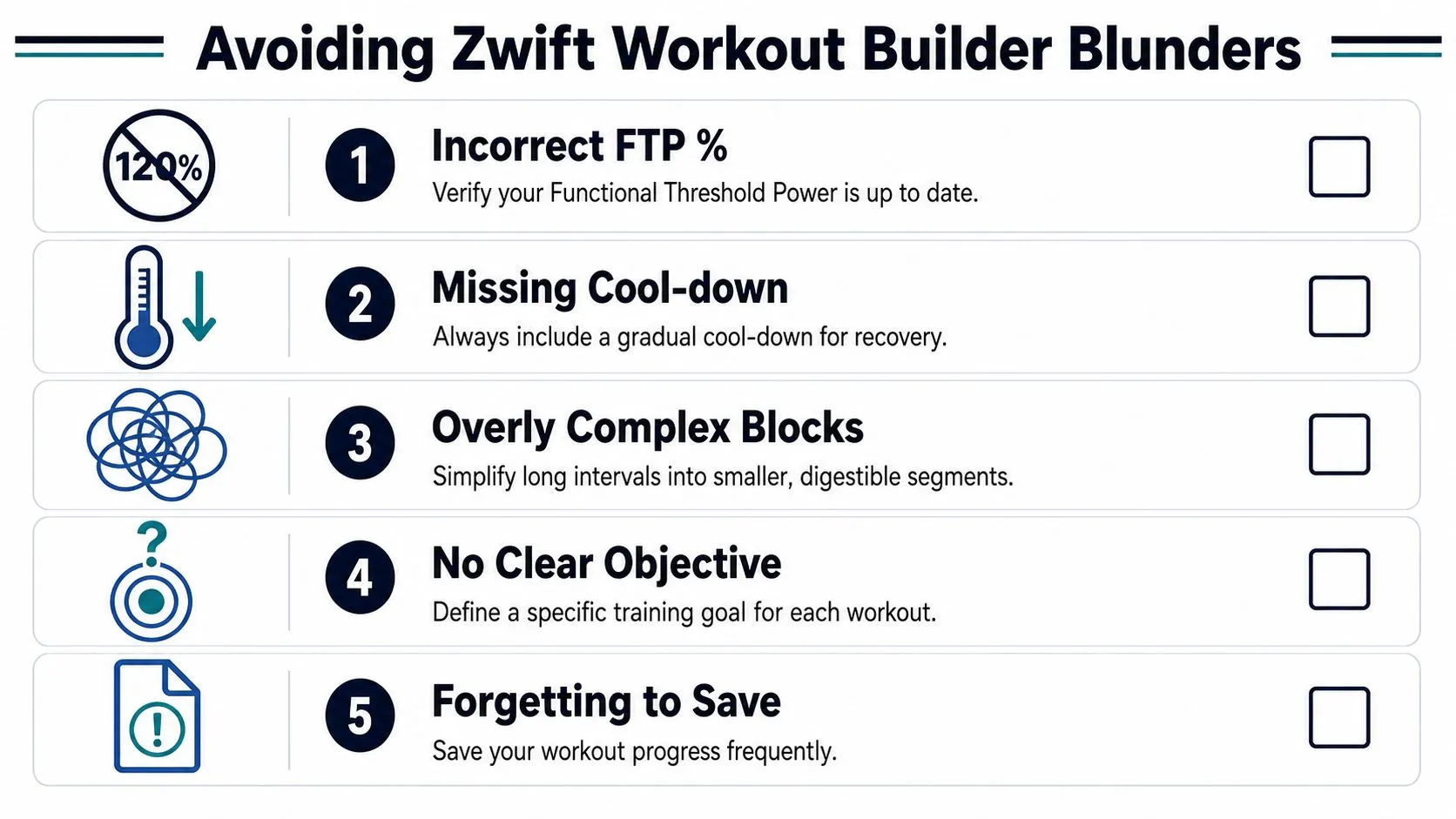
Use this pre-save checklist
-
Recovery intervals feel wrong
Symptom: The rider never gets real relief between efforts, or the recovery behaves oddly.
Cause: Recovery settings in repeat-style structures are easy to mishandle. The manual workflow makes you specify every recovery detail, and that is where mistakes creep in.
Fix: Review every recovery target before saving. Don’t assume the repeat block interpreted your intention.
-
The workout loads, but the targets look strange
Symptom: Power values seem off compared with the original coach notes.
Cause: The underlying .zwo file uses decimal fractions of FTP, and the workflow doesn’t natively parse multilingual notes or normalize everything for you. Manual decimal conversion is one place errors creep in, as noted in the earlier technical discussion from Zwift Insider.
Fix: Double-check your FTP-based targets after conversion, especially if you translated notes from another format or language.
-
The workout doesn’t appear when it should
Symptom: You saved the session, but Zwift won’t show it in the selection screen.
Cause: Naming and refresh issues are common.
Fix: Keep names simple, avoid special characters, then restart Zwift before assuming anything more serious is wrong.
-
The session looks clever but rides badly
Symptom: Transitions feel abrupt, cues are missing, and the workout loses its training purpose.
Cause: Too much focus on builder mechanics and not enough on ride feel.
Fix: Read the workout from the athlete’s perspective before you save it. If the cues and flow don’t make sense on the trainer, rebuild it.
A good final check is simple. Ask whether the workout would make sense if you saw it for the first time while already pedaling.
If you want the speed of plain-language workout creation without the drag-and-drop overhead, try TextFit. Type the session as you’d describe it, in any language (“5 x 3 min at VO2max, equal recovery”), review the structured result, and send it to your Garmin, Wahoo, or Apple Watch. It’s free to start and needs no sign-up.